
Choosing internet for Paryavaran Complex should begin with the installation site and its daily usage, not with the largest Mbps number on a poster. This detailed guide explains how to plan a dependable connection in Paryavaran Complex.
A Paryavaran Complex property can mix residential and professional use within one structure. For Paryavaran Complex, plan Wi-Fi so a work desk, family screen and separately occupied floor do not compete unnecessarily.
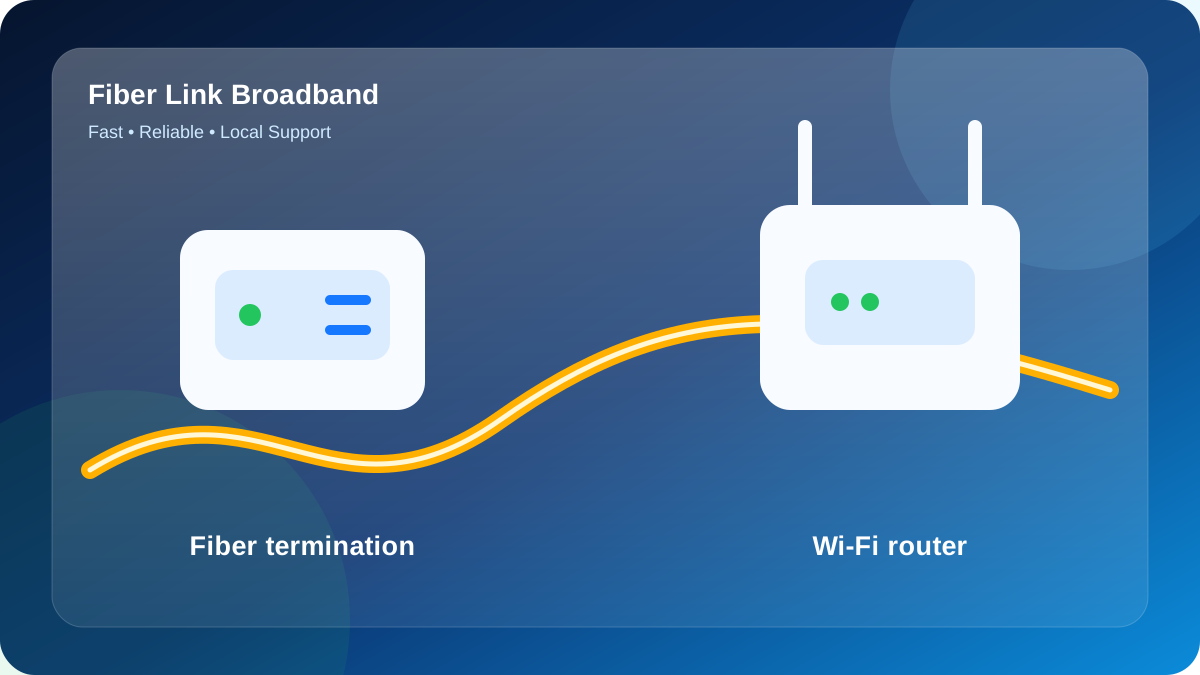
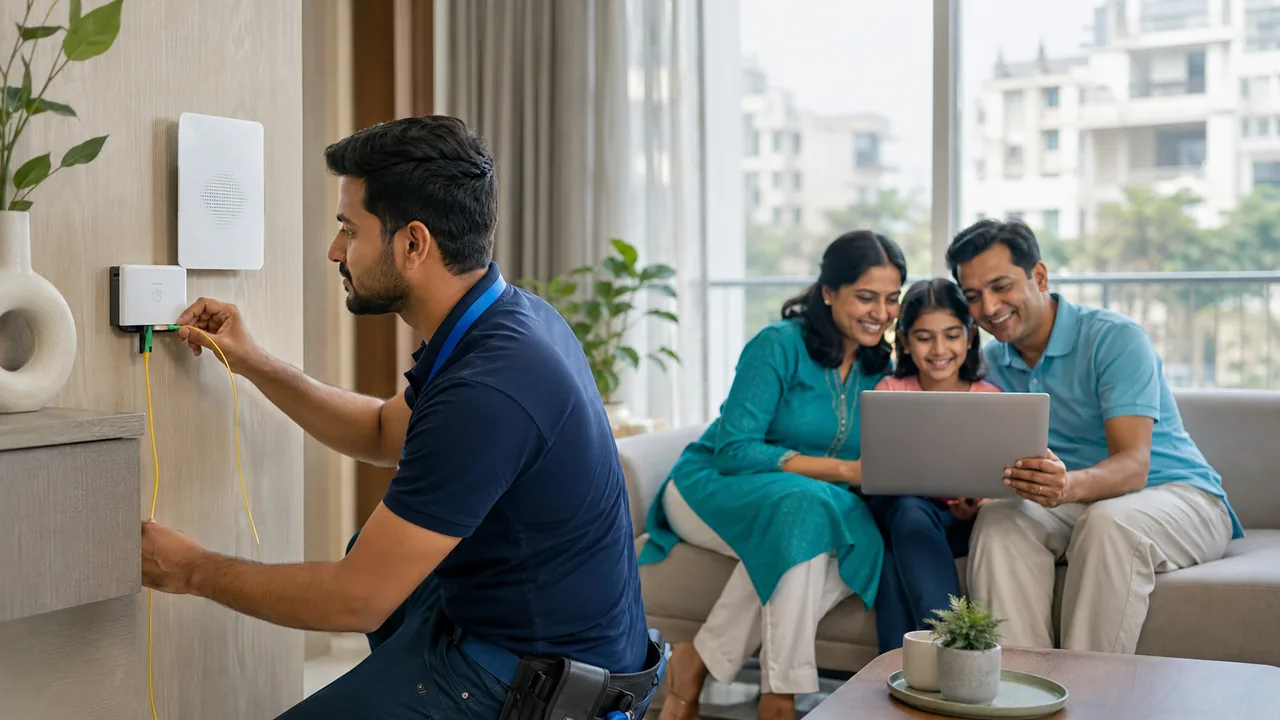
What a typical multi-device setup needs
A realistic Paryavaran Complex example uses a three-level family home for landlords, home offices and families. Peak demand can include two live meetings, one 4K TV, four phones and cloud backup.
Start by testing the main room and the far room separately. If capacity is sufficient beside the gateway, improve coverage before upgrading the broadband tier. This avoids paying more without fixing the actual weak spot.
The lesson is to solve capacity and coverage as separate questions. Upgrading speed helps congestion; better placement or an access point helps dead zones.
Local network conditions around Paryavaran Complex
Nearby reference points such as Said-ul-Ajaib, Freedom Fighter Enclave and Westend Marg help describe the service pocket, but a landmark is not a substitute for the Paryavaran Complex service location. Two buildings on the same road can have different access paths, permissions or internal wiring conditions.
Paryavaran Complex is best approached with a site-by-site fiber confirmation. The broad area may be serviceable while an individual lane, block, floor or building still needs confirmation of the nearest distribution point and a safe cable route. Sharing the house number, floor, landmark and a map pin helps the installation team avoid vague promises.
This planning point matters because the area includes apartments and independent floors where the optical network entry point may be on a different level from the main Wi-Fi usage area. Before the technician begins, decide which room needs the strongest signal, whether the Wi-Fi gateway can be placed centrally and whether a second access point may be required. This prevents the common mistake of placing the Wi-Fi gateway beside the fiber entry only because it is convenient for the cable.
Practical advice for Paryavaran Complex Block C Broadband
At a named premises like Paryavaran Complex, first confirm who can approve the cable route and where the fiber termination box can be fixed. In a rented flat, the tenant may need the owner’s permission for drilling; in a shared building, the route should avoid stairway hazards and exposed bends.
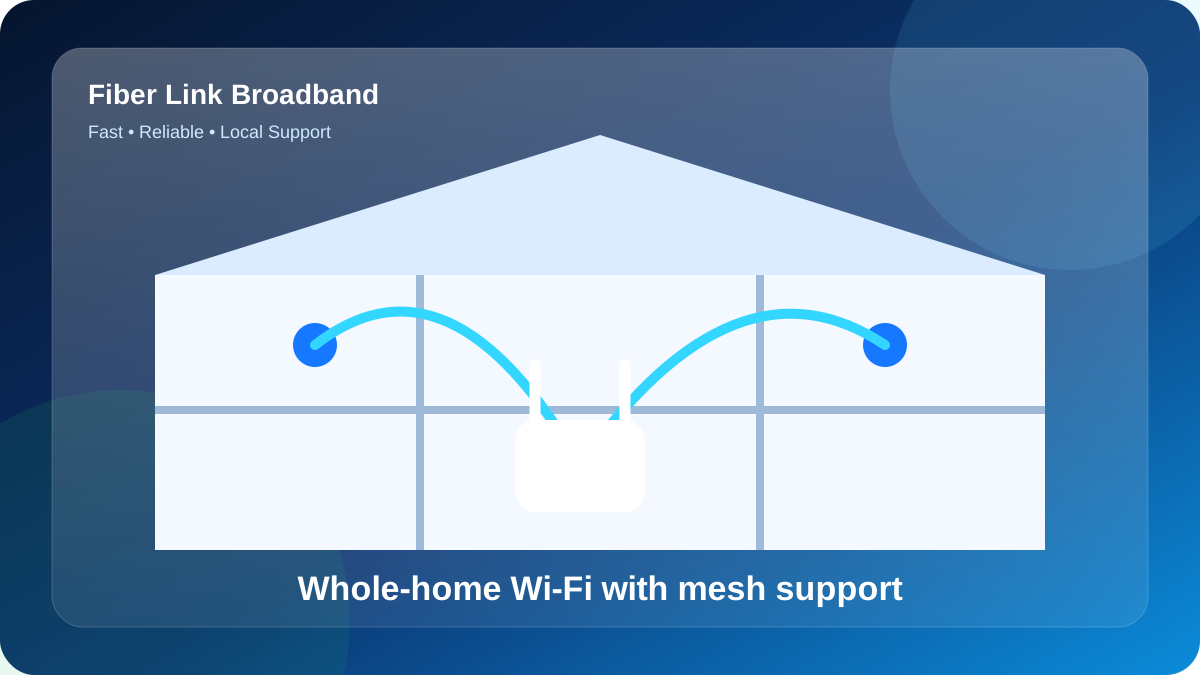
Plan Paryavaran Complex one floor at a time. When the main Wi-Fi unit and the busiest room are on different levels, an Ethernet-fed access point or well-placed mesh unit normally outperforms a low-cost repeater.
Network ownership should be clear at Paryavaran Complex: one family can share a secured setup, while separate tenants may benefit from isolated access. Marking adapters and cable routes prevents confusion during support.
100, 200 or 300 Mbps: choosing the right plan
Speed selection should be based on people and activities rather than the number of phones saved on the Wi-Fi gateway. Background updates, smart TVs and cameras also consume capacity.
| Speed | Price | Typical fit | Suitable uses |
|---|---|---|---|
| 100 Mbps | ₹499/month | Studio, room or light-use home | Live meetings, YouTube, email, study |
| 200 Mbps | ₹699/month | Family or shared flat | Several phones, OTT screen, work and study |
| 300 Mbps | ₹799/month | Power users and creators | Fast downloads, 4K, gaming, uploads |
At 100 Mbps, normal browsing, live study sessions, office work and one or two streams should be comfortable when the Wi-Fi signal is healthy. This tier is often better than paying extra for unused capacity.
The 200 Mbps tier is the balanced option for many Paryavaran Complex households. It gives more room for several phones, a connected television, meetings and downloads to run together without one activity immediately affecting another.
At 300 Mbps, the broadband link can absorb busy household traffic more comfortably. However, a dead zone remains a dead zone until the Wi-Fi design is fixed; higher Mbps does not pass through concrete more easily.
Router setup for stronger in-home performance
At Paryavaran Complex, the lower-frequency band generally offers reach and the 5 GHz band offers faster short-range service. Separate names can simplify room-by-room checks.
If Paryavaran Complex sees inconsistent Wi-Fi, surrounding networks may be sharing the same channels. Change one setting at a time and keep the original configuration noted.
At Paryavaran Complex, separate fiber capacity from indoor Wi-Fi. Test 5 GHz in the main signal area, then repeat in the farthest used room; a large drop between them points to coverage.
Five steps to install broadband
A smooth installation starts with complete information and an agreed router location.
- Provide the complete property details: Send the house or shop number, floor, Paryavaran Complex landmark and a map pin on WhatsApp. Mention whether the installation site is owned or rented.
- Check fiber-path viability: The neighbourhood support staff checks whether an active route and safe cable path are available for the premises. Any special internal cabling should be discussed before work starts.
- Select the appropriate Mbps tier: Choose 100, 200 or 300 Mbps using the number of people online together, not only the lowest price or largest headline speed.
- Agree on router positioning: Identify that area where coverage matters most. A slightly longer internal cable can be worthwhile when it places the Wi-Fi gateway centrally.
- Test and secure the network: Following activation, test beside the gateway, set a strong Wi-Fi password, change the admin password and check the main rooms.
Following activation, save the Wi-Fi name, support number and payment details. Photograph the optical indicators when the broadband link is working normally; this can help describe a future fault.
Custom network profile for Paryavaran Complex
For this guide, consider a planning model with 3 main rooms across 1 floor level, approximately 9 phones, 5 laptops, 3 smart TVs and 4 cameras. This is not a claim about the actual property at Paryavaran Complex; it is a practical load model that helps a customer count devices before selecting a plan.
In the model for Paryavaran Complex, the morning load is billing software and CCTV review, while the busiest evening period begins around 7:00 PM with family live meetings with background downloads. Because the activities overlap, the recommendation should include headroom for background data demand. A phone can upload photos, a television can update apps and a camera can send data even when nobody is actively thinking about bandwidth.
The first router candidate for Paryavaran Complex should be near the study corner, with a second test position near the rear bedroom. The main obstacle in this example is two closed doors. Instead of fixing the Wi-Fi gateway immediately beside the optical entry point, compare both candidate positions using the same phone, a consistent speed-test endpoint and the same Wi-Fi band.
That area sequence for testing this Paryavaran Complex setup is study corner, then front bedroom, then rear bedroom, and finally living room. Record signal strength or practical speed at each point. The unusual order is intentional: it checks one nearby zone, one difficult zone, another normal zone and the far edge, which makes the coverage pattern easier to interpret.
For Paryavaran Complex, an upgrade from 100 to 200 Mbps is justified when people online together create congestion within short range of the router. An access point or mesh upgrade is justified when the speed is healthy beside the gateway but falls sharply in front bedroom or living room. These are different symptoms and should not be solved with the same purchase.
A useful service complaint summary for Paryavaran Complex Block C Broadband should say which device was used, whether it was connected by Ethernet, 5 GHz or 2.4 GHz, that area, the test time and the Wi-Fi gateway light status. “Slow internet” is difficult to diagnose; “5 GHz is normal in study corner but weak in living room after 7:00 PM” gives the technician a starting point.
| Zone | Purpose | Recommended check | Decision |
|---|---|---|---|
| study corner | Primary router candidate | Check 5 GHz speed and ping | Extend Paryavaran Complex with Ethernet-backed Wi-Fi if needed |
| rear bedroom | Alternative router point | Check video-call stability | Keep current layout |
| front bedroom | Wall-crossing test | Do not upgrade speed first | Retest after repositioning |
| living room | Distant device zone | Verify practical app performance | Keep current layout |
A practical demand worksheet for Paryavaran Complex Block C Broadband
The Paryavaran Complex capacity exercise begins at the busiest household window, approximately 8:30 PM in this model. Count 4 simultaneous clients, of which 2 are fixed screens, 8 are mobile or laptop devices and 1 are handling live calls. Replace these sample counts with the real property figures.
The example load at Paryavaran Complex combines large file transfer, CCTV upload and OTT streaming. If these overlap with software updates, watch whether performance falls even beside the Wi-Fi gateway. Congestion within short range of the router points toward capacity; weakness only in another room points toward coverage.
For the Paryavaran Complex worksheet, measure TV area, front room and reception area with one test device. Record the Wi-Fi band and time. A location-dependent drop suggests an access-point decision, while a property-wide drop suggests a broader diagnostic or package review.
| Example load | Main activity | Priority | Planning action |
|---|---|---|---|
| 2 fixed screens | large file transfer | Time-sensitive | Prefer Ethernet where possible |
| 8 mobile/laptop devices | CCTV upload | Shared | Use guest access for visitors |
| 1 live call | OTT streaming | High | Test ping and upload |
| 4 total active clients | software updates | Peak-hour total | Upgrade only after controlled testing |
Diagnosing line speed versus Wi-Fi speed
Troubleshoot Paryavaran Complex from three positions: wired, close-range 5 GHz and the affected room. The pattern indicates whether the external service, main router or indoor coverage needs attention.
To measure Paryavaran Complex accurately, remove variables. Pause downloads, close VPN software, use the same endpoint and begin with Ethernet or a strong nearby Wi-Fi signal.
Repeat the Paryavaran Complex measurement in two time windows. Record the device, room, band and connection method so support receives evidence rather than a general description.
Troubleshooting playbook for Paryavaran Complex
Use the following page-specific fault example: at Paryavaran Complex, a newly added repeater creates another Wi-Fi name but does not improve performance. The purpose is not to assume that every customer will see this problem, but to show a disciplined way to isolate it without repeatedly resetting equipment or changing several settings at once.
- Create a baseline: Test one modern device within short range of the router with background downloads stopped.
- Change only one variable: Move to the weak-signal room without changing the server, device or band.
- Inspect physical indicators: Check power, optical lights, connectors and sharp cable bends.
- Compare another device: A second device helps identify a phone or laptop problem.
- Send a complete report: Provide the time, room, band and results to 9971524677.
If the issue follows one device around the installation site, inspect that device. If every device fails only in one room, inspect coverage. If every device fails beside the Wi-Fi gateway, inspect the broadband feed, power and optical equipment.
Maintenance tips for a stable connection
Cable care matters at Paryavaran Complex: avoid sharp corners, nails and heavy objects, and warn movers or painters not to disturb the optical connector.
Paryavaran Complex should not need daily router restarts. Before rebooting repeatedly, note the optical lights, power condition, cable state and time of failure.
For Paryavaran Complex, secure the wireless network and the admin panel with separate credentials. Where occupants share accommodation in Paryavaran Complex, a guest network is useful for visitors and temporary tenants.
Booking checklist for Paryavaran Complex Block C Broadband
A two-minute checklist can prevent confusion about cost, equipment and support later.
- Expected setup work and optical-cable entry route
- Payment receipt and plan start date
- Process and cost for moving the connection locally
- In-home signal coverage needs across floors or distant rooms
- Special configuration needed by CCTV, business software or remote access
- Exact monthly fee and selected speed
- Technical help channel and complaint-handling process
Check fiber availability for Paryavaran Complex
Send the exact Paryavaran Complex address, floor and nearby landmark. Fiber Link Broadband will check feasibility and explain the suitable plan and Wi-Fi setup.
WhatsApp 9971524677FAQs about Paryavaran Complex Block C Broadband
How should I test broadband speed after installation?
First test with Ethernet or 5 GHz Wi-Fi within short range of the router, then test the normal rooms. Stop downloads and VPNs during the test, and record ping, download, upload, device and time.
Which broadband speed is suitable for Paryavaran Complex?
At Paryavaran Complex, choose 100 Mbps for basic use, 200 Mbps for balanced multi-user activity, or 300 Mbps when heavy streaming, gaming and file movement overlap.
Does a faster plan improve Wi-Fi range?
No. Tier bandwidth increases available capacity, but range depends on router positioning, band, walls and interference. A mesh satellite or cable-connected Wi-Fi point may be needed for distant rooms or another floor.
Is paryavaran complex block c broadband available at every address in Paryavaran Complex?
Fiber access for Paryavaran Complex is confirmed at the individual premises level. WhatsApp the floor, landmark and pin to 9971524677 for verification.
What is the difference between 5 GHz Wi-Fi and mobile 5G?
5 GHz is a Wi-Fi frequency used by a dual-band router. Mobile 5G is a cellular network. 5 GHz Wi-Fi is usually faster beside the gateway, while 2.4 GHz generally travels farther.
Conclusion
Make the decision using your actual requirements, address and written terms. Verify indoor coverage and complete payable charges before booking.