
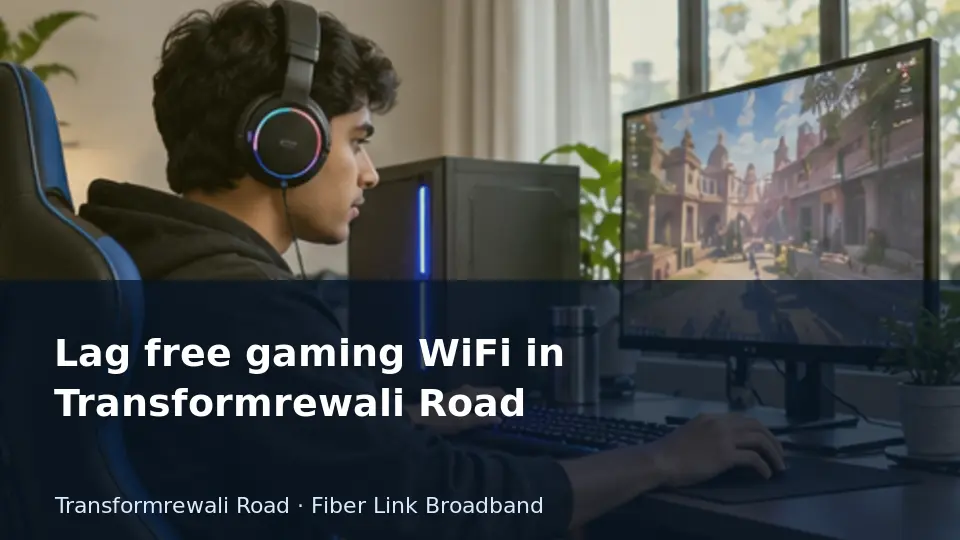
A background upload may coincide with a sudden increase in game delay. That pattern helps distinguish congestion at home from a remote server problem.
This guide is for readers planning or reviewing a connection in Transformrewali Road. It separates the decision you can make now from details that need an address-specific reply. The examples describe checks you can perform or discuss with the installer; they are not reports of a customer installation, measured local speeds or a promise that every nearby building is serviceable.
Separate throughput from responsiveness
Gaming uses several kinds of network activity. Downloading an update is a bulk transfer, a live match exchanges time-sensitive information, and cloud gaming carries a continuous interactive video stream. They should not be judged using the same single number. Latency to the selected game region, variation in delay and packet loss can matter more to live play than a high maximum download result.
A useful comparison changes one thing at a time. Keep the console or computer, game region and approximate time consistent, then compare Ethernet with WiFi. Repeat once with background downloads paused. If the problem follows household uploads, investigate contention. If it appears only with one game service, retain its diagnostic information and check the official service guidance. Avoid broad changes such as disabling the firewall or opening unnecessary ports. Any addressing or NAT question should be handled using the platform's supported instructions and the provider's confirmed network arrangement, without treating an upgrade as a universal cure.
Treat the indoor network as a separate system
The fiber connection normally reaches an optical terminal, while a router and its wireless radios serve the local devices. Some installations combine functions in one box, and others use separate equipment. The distinction matters because a working outside connection can coexist with poor wireless coverage. Before buying a faster package, establish whether a suitably connected wired device works as expected.
A coverage survey should reflect normal use. Test with doors and furniture in their ordinary positions, use the same device between rooms and note which band or access point serves it. A signal indicator is helpful but does not replace a real call or playback test. If additional equipment is needed, its link back to the main network is part of the design. A secondary unit with an unreliable backhaul can move the bottleneck without resolving it. Discuss permitted cable routes and access-point placement before selecting hardware.
1. Test cloud gaming as a continuous stream
Cloud gaming combines incoming video with outgoing controller input. A line can download quickly while variable delay makes play feel inconsistent.
Next step: Run a session at the intended quality from the actual play location and record interruptions, not just the peak speed.
2. Separate game-download speed from match responsiveness
A large update benefits from throughput, while a live match depends on responsive delivery. Upgrading only for a faster download may not change in-game lag.
Next step: Compare the same match with downloads paused and use the game's network diagnostics where available.
3. Place a gaming mesh node where its backhaul is strong
A node next to the console may still have a poor connection to the main router. The hidden wireless hop can be the source of delay.
Next step: Test Ethernet to the main router first and consider wired backhaul if the console location requires a secondary access point.
4. Check cloud-gaming service availability separately from broadband
Having fast broadband does not establish that a particular cloud-gaming platform supports your account, location or device. Those service requirements are independent.
Next step: Verify the platform's official requirements and test its connection diagnostics before committing to a broadband upgrade for that purpose.
5. Investigate packet loss before chasing a lower ping number
Occasional missing packets can cause disruptive play even when typical ping looks reasonable. Focus on repeated loss and disconnects as well as delay.
Next step: Capture the game's diagnostics and compare a wired session with a wireless one before raising the fault.
6. Build a useful gaming support report
A report saying only high ping leaves too many possible causes. The provider needs enough context to distinguish indoor WiFi from the external route.
Next step: Include game region, timestamps, wired-test results and loss observations; exclude login credentials and private account details.
7. Measure useful speed without claiming the fastest provider
A local fastest-provider claim requires comparable evidence that a single household test cannot supply. Focus on whether the connection meets your own needs.
Next step: Record repeatable results for your address, equipment and time of day instead of generalising them to an entire locality.
8. Decide whether 100 Mbps fits a small household
A modest plan can be adequate when the busiest hour includes only a few ordinary activities. Device count alone is a poor basis for choosing.
Next step: List simultaneous calls, streams and large transfers, then assess the plan against that actual overlap.
9. Understand whether an unlimited home plan permits your use
Running a business, sharing access with paying guests or hosting services may be governed by different terms from ordinary household use. Data volume alone does not establish permission.
Next step: Describe your intended use and ask for the applicable service category in writing before paying.
10. Find the device that triggers household slowdowns
If calls deteriorate only when one computer turns on, background transfers may be responsible. A speed upgrade can hide the symptom without identifying the source.
Next step: Pause that computer's sync and update tasks briefly, repeat the call and then schedule the identified transfer appropriately.
11. Separate visiting phones from smart-home controls
Guests need internet access without necessarily reaching lights, cameras or household computers. A guest network can reduce accidental access when the router implements isolation correctly.
Next step: Enable guest isolation if available and verify that a guest phone cannot open the local device-management pages.
12. Build a household data diary before renewal
A useful usage diary records activities, not private browsing history. Note when streaming, cloud backup and software updates overlap, then compare those busy periods with observed problems.
Next step: Keep a one-week log of activity, time and symptom; use it to explain your requirements without sharing account passwords.
13. What happens after heavy monthly usage
An unlimited label can describe data volume without promising the same speed under every condition. Before committing to large downloads, ask whether a fair-use threshold changes the connection and when the allowance resets.
Next step: Record the threshold, reduced speed and reset date together; an answer to only one of these questions is incomplete.
14. Test whether 300 Mbps reduces a busy-hour queue
A higher tier may help when several sustained transfers compete for a genuinely saturated connection. It does not automatically fix packet loss or a weak signal.
Next step: Confirm a clean wired baseline and repeat the busiest workload before deciding whether extra capacity is the relevant solution.
15. Protect a damaged fiber route while awaiting repair
A loose or damaged cable is not a household repair project. Pulling, sharply bending or opening optical connections can make the fault worse.
Next step: Keep people away from the affected section and send a description or safe photo to the provider for a repair visit.
16. Decide whether gigabit adds value to your actual work
Very large transfers can benefit from more capacity when the entire path supports it. Ordinary browsing may change little, and poor room coverage remains a separate issue.
Next step: Estimate how much transfer time you would save, verify availability and compare that benefit with the full recurring cost.
17. Check the router before upgrading a busy household
A router can struggle with many active sessions even when the fiber line has enough capacity. Firmware, radio placement and connected equipment deserve attention before a purchase.
Next step: Compare a wired device with wireless devices during the same busy period and retain the router model in your notes.
Use the guide for your address
For Transformrewali Road, send Fiber Link Broadband the complete building address, floor and map pin when requesting feasibility or a current quotation. Mention the particular requirement covered by this article so the reply can address your use case. Ask for the service scope, equipment responsibilities and complete payable amount in writing. Retain the response alongside your installation or support record, and revisit any unanswered point before committing to a longer payment period.
Contact 9971524677 or 9990881098. Review the published plan information and request an address check. Current availability and terms need confirmation.
All Fiber Link broadband plans
Compare the monthly plans listed on our broadband plans page.
| Plan | Speed | Monthly price | Included benefits | Availability |
|---|---|---|---|---|
| Fiber Start | 100 Mbps | ₹499/month | Unlimited data, free installation, 24×7 customer support | Enquire |
| Fiber Plus | 200 Mbps | ₹699/month | Unlimited data, free installation, 24×7 priority support | Enquire |
| Fiber Pro | 300 Mbps | ₹799/month | Unlimited data, free installation, 24×7 priority support | Enquire |
| Fiber Ultra | 500 Mbps | ₹1,699/month | Unlimited data, free installation, 24×7 priority support | Enquire |
Router and billing terms: 5G dual-band Wi-Fi router refundable security applies. Confirm the deposit, applicable taxes, billing period, complete first payment and installation feasibility for your address before booking. Terms apply.
Business leased line: Custom bandwidth, equal upload and download speeds, SLA-backed uptime, static IP options and priority local support. Call 9971524677 for a custom quote.