
High Speed Fiber Broadband Ignou Road is not only a question about advertised speed. It is a question about whether the fiber route reaches the property, where the dual-band device will sit and how the internet service behaves when several phones and screens are active.
IGNOU Road includes student housing, PG accommodation, apartment buildings, local markets, offices and family homes along the busy IGNOU Road corridor. That mix creates different traffic patterns: a student may need reliable classes and submissions, a family may stream on several screens, while a shop may depend on UPI, billing and CCTV throughout the day.
Example: matching speed and coverage
Consider a compact one-bedroom flat in IGNOU Road. During the evening it may run virtual classes, YouTube, a laptop VPN and a security camera at the same time.
Start by testing the main room and the far room separately. If capacity is sufficient beside the gateway, improve coverage before upgrading the broadband tier. This avoids paying more without fixing the actual weak spot.
The lesson is to solve capacity and coverage as separate questions. Upgrading speed helps congestion; better placement or an access point helps dead zones.
Before choosing a connection in IGNOU Road
IGNOU Road is best approached through a property-specific route review. The broad area may be serviceable while an individual lane, block, floor or building still needs confirmation of the nearest distribution point and a safe cable route. Sharing the house number, floor, landmark and a map pin helps the installation team avoid vague promises.
Nearby reference points such as Neb Sarai, Maidan Garhi and IGNOU Campus Area help describe the service pocket, but a landmark is not a substitute for the High Speed service location. Two buildings on the same road can have different access paths, permissions or internal wiring conditions.
This planning point matters because the area includes rented rooms and builder floors where users often need strong Wi-Fi for virtual classes, interviews, cloud work and streaming. Ahead of the setup, decide which room needs the strongest signal, whether the dual-band device can be placed centrally and whether a second access point may be required. This prevents the common mistake of placing the dual-band device beside the fiber entry only because it is convenient for the cable.
The most important technical decisions
Fiber is capable of high throughput and low latency, but the result on a phone depends on the handset or computer radio, router band, distance and interference. Test the incoming service with Ethernet when possible, then test Wi-Fi in the main rooms to identify whether a slowdown is external or internal.
Gigabit-class marketing is not necessary for every home. For most families, 200 or 300 Mbps is already enough for several streams, camera calls and downloads. The larger benefit comes from stable capacity and good signal distribution instead of a speed tier that devices cannot use.
Upload performance is important for cloud backup, CCTV remote viewing, content creation and sending large files. Run tests at different times and use the same server and device when comparing results, otherwise the comparison can be misleading.
100, 200 or 300 Mbps: choosing the right plan
A plan can feel fast on one laptop and congested when the whole family is online. The comparison that follows uses real household patterns to make the choice easier.
| Speed | Price | Typical fit | Suitable uses |
|---|---|---|---|
| 100 Mbps | ₹499/month | 1–3 regular users | Classes, browsing, HD streaming, office apps |
| 200 Mbps | ₹699/month | 3–6 regular users | Multiple OTT streams, WFH, downloads, CCTV |
| 300 Mbps | ₹799/month | Heavy multi-device home | 4K screens, gaming, cloud backup, large files |
The 100 Mbps plan can be a strong entry choice for one room, a small family or users who mainly browse, study and stream in HD. It will not improve weak coverage by itself, so access-point placement still matters.
Users who remote working while others stream should consider 200 Mbps. The extra capacity is most noticeable when multiple people are active rather than when one phone runs a bandwidth check.
The 300 Mbps plan is aimed at heavy multi-device homes, gamers, creators and users who move large files. Devices need modern Wi-Fi or Ethernet to take advantage of the higher speed.
Router setup for stronger in-home performance
Test High Speed in two zones before changing plans. A healthy close-range result followed by a poor far-room result means the indoor network needs redesign.
Nearby Wi-Fi networks can create channel congestion around High Speed. Leave automatic selection in place unless testing shows a persistent issue, and record every advanced change.
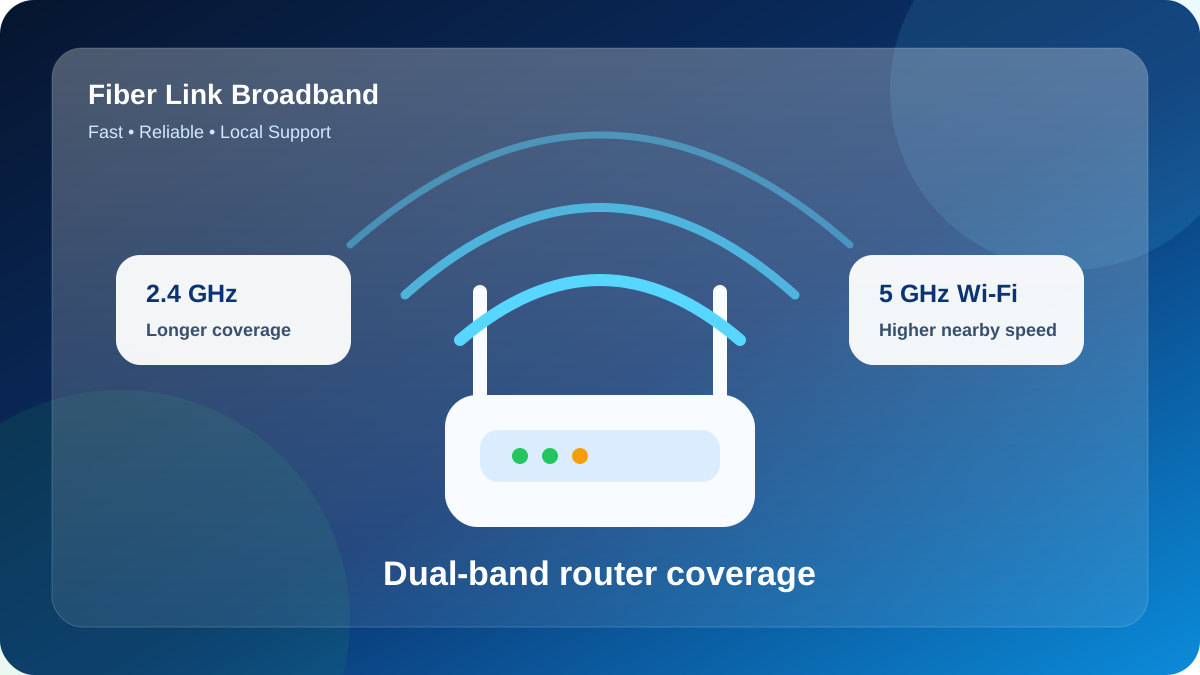
Choose bands by purpose at High Speed: 5 GHz for high-speed nearby devices and 2.4 GHz for low-demand devices at greater distance. Label them clearly while diagnosing.
Five steps to install broadband
The steps below reduce delays and prevent the dual-band device from being fixed in the wrong room.
- Share the full service address: Send the house or shop number, floor, IGNOU Road landmark and a map pin on WhatsApp. Mention whether the premises is owned or rented.
- Check full-fiber serviceability: The IGNOU Road field team checks whether an active route and safe cable path are available for the property. Any special internal cabling should be discussed before work starts.
- Select the appropriate Mbps tier: Choose 100, 200 or 300 Mbps using the number of people online together, not only the lowest price or largest headline speed.
- Agree on access-point placement: Identify the space where coverage matters most. A slightly longer internal cable can be worthwhile when it places the dual-band device centrally.
- Test and secure the network: When setup is complete, test beside the gateway, set a strong Wi-Fi password, change the admin password and check the main rooms.
Before the technician leaves, check one wired or close-range result and at least two normal-use rooms. This is the best time to adjust placement while tools and cable are available.
Room-by-room planning notes for High Speed Fiber Broadband Ignou Road
For this guide, consider a planning model with 2 main rooms across 2 floor levels, approximately 3 phones, 2 laptops, 3 smart TVs and 4 cameras. This is not a claim about the actual property at High Speed; it is a practical load model that helps a customer count devices before selecting a plan.
In the model for High Speed, the morning load is billing software and CCTV review, while the busiest evening period begins around 9:00 PM with two OTT streams plus social video. Because the activities overlap, the recommendation should include headroom for background data demand. A phone can upload photos, a television can update apps and a camera can send data even when nobody is actively thinking about bandwidth.
The first router candidate for High Speed should be near the living room, with a second test position near the reception desk. The main obstacle in this example is the fiber entry point being far from the main workspace. Instead of fixing the dual-band device immediately beside the optical entry point, compare both candidate positions using the same phone, one identical measurement server and the same Wi-Fi band.
The space sequence for testing this IGNOU Road setup is living room, then balcony workspace, then reception desk, and finally upper-floor room. Record signal strength or practical speed at each point. The unusual order is intentional: it checks one nearby zone, one difficult zone, another normal zone and the far edge, which makes the coverage pattern easier to interpret.
For High Speed, an upgrade from 100 to 200 Mbps is justified when people online together create congestion near the gateway. An access point or mesh upgrade is justified when the speed is healthy beside the gateway but falls sharply in balcony workspace or upper-floor room. These are different symptoms and should not be solved with the same purchase.
A useful technical support message for High Speed Fiber Broadband Ignou Road should say which device was used, whether it was connected by Ethernet, 5 GHz or 2.4 GHz, the space, the test time and the dual-band device light status. “Slow internet” is difficult to diagnose; “5 GHz is normal in living room but weak in upper-floor room after 9:00 PM” gives the technician a starting point.
| Zone | Purpose | Recommended check | Decision |
|---|---|---|---|
| living room | Primary router candidate | Use as the comparison point | Review during peak time |
| reception desk | Second important room | Check video-call stability | Retest after repositioning |
| balcony workspace | Likely weak zone | Consider access point with Ethernet backhaul | Use a cable-fed access point where High Speed needs more reach |
| upper-floor room | Distant device zone | Plan Ethernet for fixed equipment | Retest after repositioning |
Peak-hour planning sheet for High Speed
Use this worksheet as a planning exercise for High Speed. Assume 10 devices are active together at 7:00 PM, including 2 fixed screens, 9 mobile devices and 1 real-time call. The numbers are illustrative, but the counting method is useful for the actual address.
The example load at High Speed combines remote desktop, CCTV upload and cloud backup. If these overlap with software updates, watch whether performance falls even beside the dual-band device. Congestion near the gateway points toward capacity; weakness only in another room points toward coverage.
Use reception area as the reference zone for High Speed, then compare shop counter and rear bedroom. The purpose is to preserve one consistent benchmark while changing only location. This simple sequence prevents a far-room Wi-Fi problem from being mistaken for an insufficient service tier.
| Example load | Main activity | Priority | Planning action |
|---|---|---|---|
| 2 fixed screens | remote desktop | High | Keep on strong 5 GHz |
| 9 mobile/laptop devices | CCTV upload | Medium | Use guest access for visitors |
| 1 live call | cloud backup | High | Pause bulk transfers during critical calls |
| 10 total active clients | software updates | Peak-hour total | Compare 100/200/300 Mbps fit |
A fair way to test the connection
Do not judge High Speed from download alone. Upload affects file sending and camera calls, while ping and jitter reveal whether real-time traffic is likely to remain steady.
For High Speed, run a controlled performance test: use one current device, pause heavy transfers, avoid a VPN and test by Ethernet or from the primary Wi-Fi zone. Keep the server unchanged for comparison.
Use a three-stage comparison at High Speed: Ethernet first, nearby 5 GHz second and the weak zone last. This separates line capacity from wireless distribution.
When high speed fiber broadband ignou road does not feel right
Use the following page-specific fault example: at High Speed, the optical indicator changes from its normal state after cable movement. The purpose is not to assume that every customer will see this problem, but to show a disciplined way to isolate it without repeatedly resetting equipment or changing several settings at once.
- Record the symptoms before rebooting: Write down which devices fail and whether the Wi-Fi name disappears.
- Separate line from Wi-Fi: Use Ethernet or a close 5 GHz test to check the incoming capacity.
- Measure performance in the affected space: Repeat the normal activity in the exact room where it fails.
- Temporarily reverse new settings: Remove a new repeater, VPN or manual DNS change temporarily.
- Share the test evidence with the service team: Share screenshots and router-light details with local support on 9971524677.
For High Speed, do not factory-reset the dual-band device unless support specifically asks for it. A reset can erase the Wi-Fi name and configuration while leaving the original line or coverage problem unchanged.
Prevent avoidable Wi-Fi and fiber problems
If High Speed works only after repeated reboots, collect evidence instead of treating rebooting as maintenance. Power and optical status can reveal the real cause.
Protect High Speed with WPA2 or WPA3, a strong Wi-Fi key and a different administrator password. In shared accommodation in IGNOU Road, a guest network is useful for visitors and temporary tenants.
Power accessories at High Speed should be clearly marked. The wrong adapter may create instability, while a suitable UPS can maintain service during a short outage.
Booking checklist for High Speed Fiber Broadband Ignou Road
Use these questions while speaking with the provider or technician.
- Payment receipt and plan start date
- Whether a future move within the service area can be handled
- Cable-routing method and any drilling or internal work
- Exact monthly fee and selected speed
- Any need for cameras, remote-office VPNs or fixed network settings
- Router model, ownership or refundable security terms
- Complaint contact, expected response path and escalation method
Check fiber availability for High Speed
Send the exact IGNOU Road address, floor and nearby landmark. Fiber Link Broadband will check feasibility and explain the suitable plan and Wi-Fi setup.
WhatsApp 9971524677FAQs about High Speed Fiber Broadband Ignou Road
Which broadband speed is suitable for High Speed?
At High Speed, choose 100 Mbps for basic use, 200 Mbps for balanced multi-user activity, or 300 Mbps when heavy streaming, gaming and file movement overlap.
Can one router cover a multi-floor home?
Sometimes, but concrete floors often weaken the signal. An Ethernet-fed access point or correctly placed secondary mesh point is usually more reliable than relying on one router at the fiber entry point.
Is local support available for IGNOU Road?
Fiber Link Broadband provides local availability checks and support through contact by phone or WhatsApp on 9971524677. Response and installation timing depend on the High Speed service location and current field schedule.
Is high speed fiber broadband ignou road available at every address in IGNOU Road?
High Speed requires a building-and-floor feasibility confirmation. Send the complete location, landmark and map pin to 9971524677 before booking.
Does a faster plan improve Wi-Fi range?
No. Package capacity increases available capacity, but range depends on access-point placement, band, walls and interference. A secondary mesh point or access point with Ethernet backhaul may be needed for distant rooms or another floor.
Conclusion
Make the decision using your actual requirements, address and written terms. Verify indoor coverage and complete payable charges before booking.