
Broadband decisions are easier when the technical terms are converted into everyday outcomes. Here, Home Wifi Installation Neb Sarai is explained through real uses such as real-time calls, OTT, CCTV, gaming, uploads and multi-device homes.
Properties around Neb Sarai often combine living and working spaces. A bedroom can also be a home office, a ground floor can be a shop, and upper floors can be rented separately; the network must therefore be stable, secure and easy to extend.
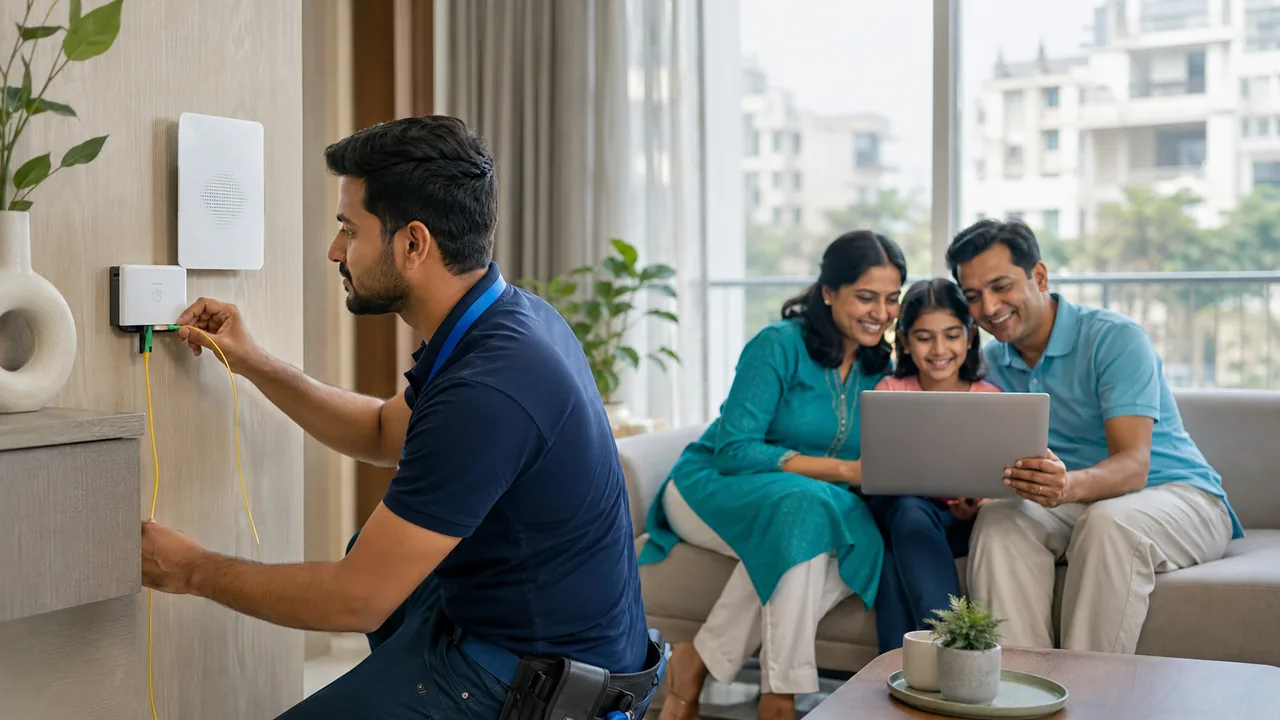
Address-level fiber coverage in Neb Sarai
Neb Sarai is best approached with a site-by-site fiber confirmation. The broad area may be serviceable while an individual lane, block, floor or building still needs confirmation of the nearest distribution point and a safe cable route. Sharing the house number, floor, landmark and a map pin helps the installation team avoid vague promises.
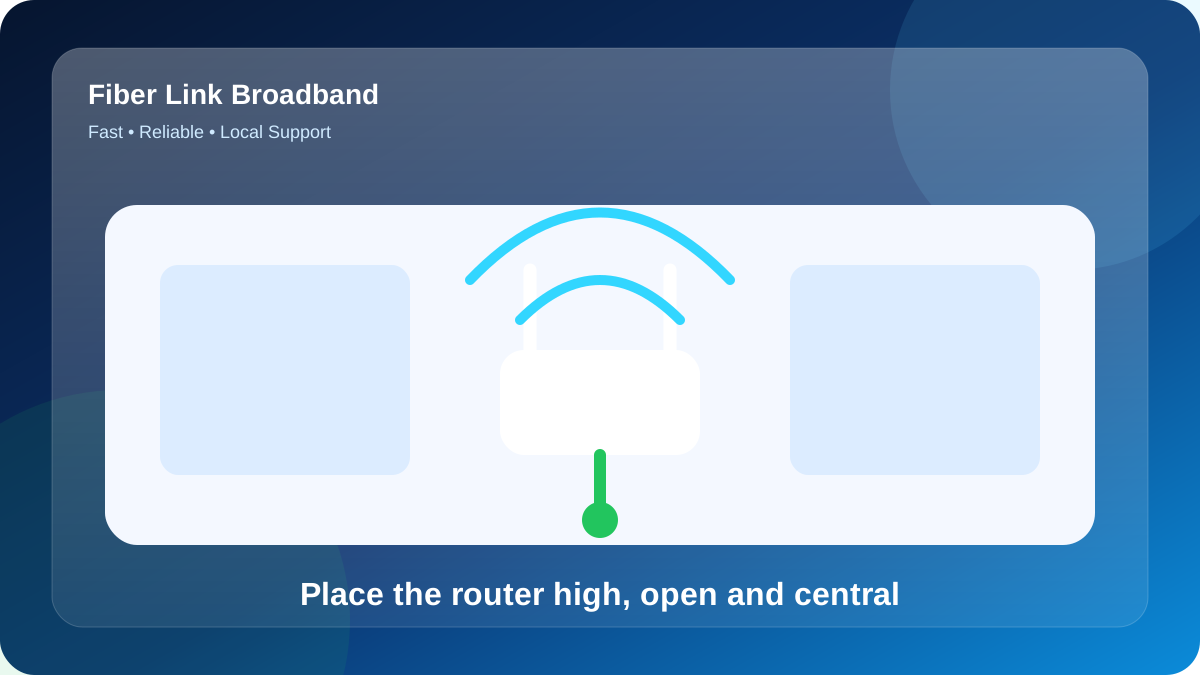
This planning point matters because the area includes apartments and multi-level properties where thick walls, long corridors and poor router positioning can create dead zones. Before the technician begins, decide which room needs the strongest signal, whether the wireless unit can be placed centrally and whether a second access point may be required. This prevents the common mistake of placing the wireless unit beside the fiber entry only because it is convenient for the cable.
Nearby reference points such as IGNOU Road, Freedom Fighter Enclave and Maidan Garhi help describe the service pocket, but a landmark is not a substitute for the Home Wifi Installation service location. Two buildings on the same road can have different access paths, permissions or internal wiring conditions.
Plan comparison for real daily usage
The most practical way to choose a plan in Neb Sarai is to estimate peak simultaneous use. Count what happens at the busiest hour, not the quietest one.
| Speed | Price | Typical fit | Suitable uses |
|---|---|---|---|
| 100 Mbps | ₹499/month | 1–3 regular users | Classes, browsing, HD streaming, office apps |
| 200 Mbps | ₹699/month | 3–6 regular users | Multiple OTT streams, WFH, downloads, CCTV |
| 300 Mbps | ₹799/month | Heavy multi-device home | 4K screens, gaming, cloud backup, large files |
The 100 Mbps plan can be a strong entry choice for one room, a small family or users who mainly browse, study and stream in HD. It will not improve weak coverage by itself, so wireless-unit location still matters.
The 200 Mbps tier is the balanced option for many Neb Sarai households. It gives more room for several phones, a streaming TV, meetings and downloads to run together without one activity immediately affecting another.
The 300 Mbps plan is aimed at heavy multi-device homes, gamers, creators and users who move large files. Devices need modern Wi-Fi or Ethernet to take advantage of the higher speed.
Practical advice for Home Wifi Installation Neb Sarai
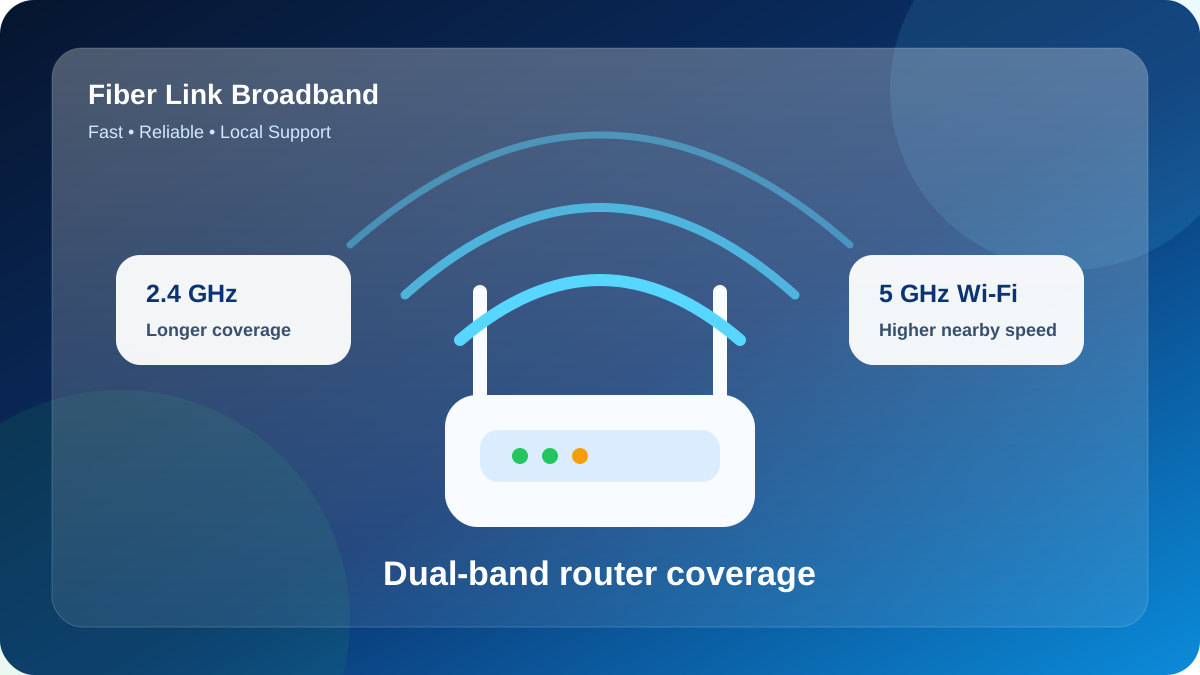
The phrase “5G Wi-Fi” usually refers to the 5 GHz Wi-Fi band, not a mobile 5G SIM service. The 5 GHz band can deliver higher speed beside the gateway, while 2.4 GHz usually reaches farther through walls. A dual-band router lets users choose the band that fits each room and device.
Wireless-unit location is one of the cheapest performance upgrades. Keep it in an open, elevated and reasonably central position; avoid metal cupboards, closed TV units, the floor, microwave ovens and corners behind large furniture. Rotate the antennas only after testing, rather than copying a random online diagram.
For wider properties, use a hard-wired wireless node or a well-positioned whole-home Wi-Fi node. A repeater can help in a light-usage corner, but it may reduce throughput because it receives and retransmits the same wireless traffic. The right choice depends on wall thickness and whether Ethernet cabling is possible.
Installation process for Neb Sarai
A smooth installation starts with complete information and an agreed router location.
- Share the full service address: Send the house or shop number, floor, Neb Sarai landmark and a map pin on WhatsApp. Mention whether the service location is owned or rented.
- Match the package to demand: Choose 100, 200 or 300 Mbps using the number of people online together, not only the lowest price or largest headline speed.
- Check optical-route availability: The local installation crew checks whether an active route and safe cable path are available for the structure. Any special internal cabling should be discussed before work starts.
- Agree on wireless-unit location: Identify the selected room where coverage matters most. A slightly longer internal cable can be worthwhile when it places the wireless unit centrally.
- Test and secure the network: Following activation, test beside the gateway, set a strong Wi-Fi password, change the admin password and check the main rooms.
The cable path for Home Wifi Installation should be safe, supported and gently curved. Ask where the optical termination will sit and retain enough slack for servicing.
Improve Wi-Fi coverage without buying unnecessary speed
In Neb Sarai, the area includes apartments and multi-level properties where thick walls, long corridors and poor router positioning can create dead zones. For a second floor or a distant room, a hard-wired wireless node usually preserves more speed than a basic repeater. Mesh systems are convenient when wiring is difficult, but node placement must still be tested.
Channel interference is a local radio issue at Home Wifi Installation, not necessarily a broadband fault. Diagnose it methodically instead of experimenting with several advanced options together.
At Home Wifi Installation, the lower-frequency band generally offers reach and the 5 GHz band offers faster short-range service. Separate names can simplify room-by-room checks.
A fair way to test the connection
Do not judge Home Wifi Installation from download alone. Upload affects file sending and camera calls, while ping and jitter reveal whether real-time traffic is likely to remain steady.
The most useful test for Home Wifi Installation is repeatable: same client, same server, no major background traffic and a known wired or close-range connection method.
Repeat the Home Wifi Installation measurement in two time windows. Record the device, room, band and connection method so support receives evidence rather than a general description.
A realistic usage example for Home Wifi Installation
A realistic Home Wifi Installation example uses a street-facing shop with a back office for families, students and professionals. Peak demand can include web-based lessons, YouTube, a laptop VPN and a security camera.
The right solution may be 100 Mbps with excellent placement for a light-use home, or 300 Mbps plus a mesh/access point for a busy multi-user property. The floor plan decides coverage; the service package decides capacity.
The lesson is to solve capacity and coverage as separate questions. Upgrading speed helps congestion; better placement or an access point helps dead zones.
Room-by-room planning notes for Home Wifi Installation Neb Sarai
For this guide, consider a planning model with 2 main rooms across 1 floor level, approximately 3 phones, 3 laptops, 2 smart TVs and no cameras. This is not a claim about the actual property at Home Wifi Installation; it is a practical load model that helps a customer count devices before selecting a plan.
In the model for Home Wifi Installation, the morning load is research downloads and remote desktop, while the busiest evening period begins around 7:00 PM with gaming while another user watches 4K content. Because the activities overlap, the recommendation should include headroom for unnoticed device usage. A phone can upload photos, a television can update apps and a camera can send data even when nobody is actively thinking about bandwidth.
The first router candidate for Home Wifi Installation should be near the rear bedroom, with a second test position near the balcony workspace. The main obstacle in this example is two closed doors. Instead of fixing the wireless unit immediately beside the optical entry point, compare both candidate positions using the same phone, a consistent speed-test endpoint and the same Wi-Fi band.
The selected room sequence for testing this Neb Sarai setup is rear bedroom, then stair landing, then balcony workspace, and finally TV wall. Record signal strength or practical speed at each point. The unusual order is intentional: it checks one nearby zone, one difficult zone, another normal zone and the far edge, which makes the coverage pattern easier to interpret.
For Home Wifi Installation, an upgrade from 100 to 200 Mbps is justified when people online together create congestion beside the Wi-Fi unit. An access point or mesh upgrade is justified when the speed is healthy beside the gateway but falls sharply in stair landing or TV wall. These are different symptoms and should not be solved with the same purchase.
A useful service complaint summary for Home Wifi Installation Neb Sarai should say which device was used, whether it was connected by Ethernet, 5 GHz or 2.4 GHz, the selected room, the test time and the wireless unit light status. “Slow internet” is difficult to diagnose; “5 GHz is normal in rear bedroom but weak in TV wall after 7:00 PM” gives the technician a starting point.
| Zone | Purpose | Recommended check | Decision |
|---|---|---|---|
| rear bedroom | Main work zone | Check 5 GHz speed and ping | Retest after repositioning |
| balcony workspace | Second important room | Check video-call stability | Retest after repositioning |
| stair landing | Coverage challenge | Move whole-home Wi-Fi node closer | Retest after repositioning |
| TV wall | Distant device zone | Use 2.4 GHz for low-demand distant devices at Home Wifi Installation | Keep current layout |
Peak-hour planning sheet for Home Wifi Installation
For Home Wifi Installation, list the equipment that is genuinely active at the busiest time rather than every device ever connected. In this example, 5 clients overlap around 7:30 PM: 2 fixed displays, 9 portable devices and 3 live communication sessions.
At Home Wifi Installation, rank activities by sensitivity. multiplayer gaming and CCTV upload need steady performance, while software updates and OTT streaming can often wait. A plan should protect the live tasks first instead of allowing automatic downloads to dominate the busiest period.
Use living room as the reference zone for Home Wifi Installation, then compare reception area and upper floor. The purpose is to preserve one consistent benchmark while changing only location. This simple sequence prevents a far-room Wi-Fi problem from being mistaken for an insufficient service tier.
| Example load | Main activity | Priority | Planning action |
|---|---|---|---|
| 2 fixed screens | multiplayer gaming | Time-sensitive | Prefer Ethernet where possible |
| 9 mobile/laptop devices | CCTV upload | Variable | Use guest access for visitors |
| 3 live calls | software updates | Latency-sensitive | Use the nearest access point |
| 5 total active clients | OTT streaming | Combined demand | Retest at the busiest hour |
How to report and solve common connection issues
Use the following page-specific fault example: at Home Wifi Installation, real-time calls freeze while downloads appear acceptable. The purpose is not to assume that every customer will see this problem, but to show a disciplined way to isolate it without repeatedly resetting equipment or changing several settings at once.
- Test the simplest path: Connect directly and avoid VPN, extender and background cloud sync.
- Measure ping and upload: A download-only result can miss the cause of call or upload trouble.
- Review placement: Open cabinet doors and move the wireless unit away from metal or floor level.
- Watch peak-hour behaviour: Repeat once during the problem window and once outside it.
- Request a field check: If the controlled tests remain poor, contact 9971524677 with the exact Neb Sarai address.
If the issue follows one device around the service location, inspect that device. If every device fails only in one room, inspect coverage. If every device fails beside the wireless unit, inspect the optical link, power and optical equipment.
Security, cable care and reliable daily operation
Use WPA2/WPA3 and two distinct passwords at Home Wifi Installation: one for Wi-Fi and one for administration. For shared housing in Neb Sarai, a guest network is useful for visitors and temporary tenants.
Daily rebooting is not a normal fix for Home Wifi Installation. Record lights, cable condition and timing so support can investigate the underlying fault.
For reliable power at Home Wifi Installation, mark each adapter and use only the correct rating. Size any UPS for the router and optical unit together.
What to verify before making payment
A two-minute checklist can prevent confusion about cost, equipment and support later.
- Whether a future move within the service area can be handled
- Cable-routing method and any drilling or internal work
- Wireless reach needs across floors or distant rooms
- Router model, ownership or refundable security terms
- Complaint contact, expected response path and escalation method
- Exact service price and selected speed
- Payment receipt and plan start date
Check fiber availability for Home Wifi Installation
Send the exact Neb Sarai address, floor and nearby landmark. Fiber Link Broadband will check feasibility and explain the suitable plan and Wi-Fi setup.
WhatsApp 9971524677FAQs about Home Wifi Installation Neb Sarai
What details should I confirm before paying?
Confirm the service price, selected throughput, installation work, router ownership or security, support contact, payment receipt and any special terms for the selected duration.
How should I test broadband speed after installation?
First test with Ethernet or 5 GHz Wi-Fi beside the Wi-Fi unit, then test the normal rooms. Stop downloads and VPNs during the test, and record ping, download, upload, device and time.
How do I request a new connection in PIN 110068?
Reach the team through call or WhatsApp 9971524677, share the complete address and choose a preferred plan. Feasibility, installation details, router terms and scheduling are then confirmed for the service location.
What is the difference between 5 GHz Wi-Fi and mobile 5G?
5 GHz is a Wi-Fi frequency used by a dual-band router. Mobile 5G is a cellular network. 5 GHz Wi-Fi is usually faster beside the gateway, while 2.4 GHz generally travels farther.
Which broadband speed is suitable for Home Wifi Installation?
For Home Wifi Installation, 100 Mbps fits lighter demand, 200 Mbps suits a busy family or shared flat, and 300 Mbps adds capacity for gaming, 4K video and large transfers.
Conclusion
Start with the exact address and installation route, then compare plans and payable terms. Keep receipts and test the connection before the technician completes handover.