
Internet problems inside a home are often blamed on the provider even when the real cause is poor router positioning or a room-and-floor arrangement that blocks Wi-Fi. This guide separates line quality from in-home coverage for Chhattarpur Extension.
In this part of South Delhi, internet commonly supports 4K streaming, CCTV viewing, video meetings, smart TVs and UPI and billing. An active line should be planned for simultaneous use rather than a single speed-test screenshot.
Local network conditions around Chhattarpur Extension
Nearby reference points such as Chhattarpur, Indra Enclave and Rajpur Khurd help describe the service pocket, but a landmark is not a substitute for the precise property details. Two buildings on the same road can have different access paths, permissions or internal wiring conditions.
Chhattarpur Extension is best approached with a site-by-site fiber confirmation. The broad area may be serviceable while an individual lane, block, floor or building still needs confirmation of the nearest distribution point and a safe cable route. Sharing the house number, floor, landmark and a map pin helps the installation team avoid vague promises.
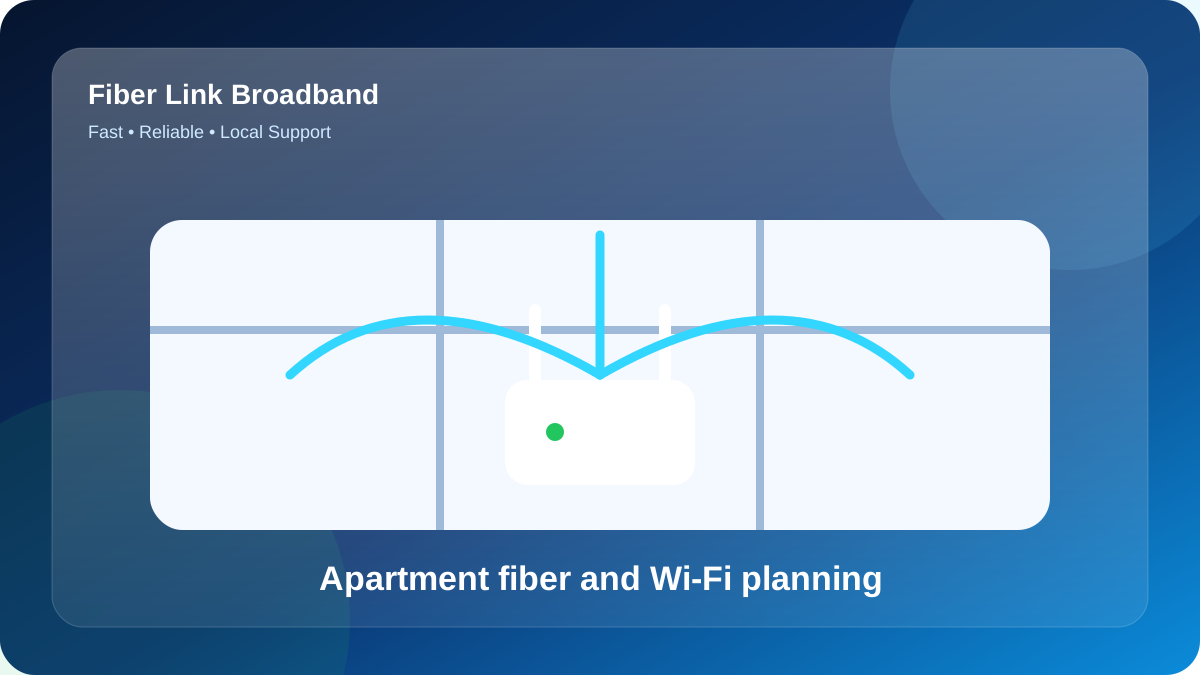
This planning point matters because the area includes multi-room homes where the Wi-Fi gateway is often installed near the entrance even though most online activity happens deeper inside. Prior to activation, decide which room needs the strongest signal, whether the Wi-Fi gateway can be placed centrally and whether a second access point may be required. This prevents the common mistake of placing the Wi-Fi gateway beside the fiber entry only because it is convenient for the cable.
The most important technical decisions
A new connection begins with feasibility, not payment. The team needs the full address and landmark to check the nearest fiber path, determine a cable route and estimate whether extra internal work is needed.
After the optical link is activated, test near the gateway first. Then walk to the rooms where internet is normally used. This separates broadband capacity from in-home signal coverage and gives a clear basis for adjusting placement or adding an access point.
Keep the Wi-Fi gateway, optical terminal and their power adapters on a stable electrical point. A small UPS can maintain connectivity during brief power cuts, which is useful for work calls, CCTV and virtual classes.
Plan the network for the busiest hour
A realistic Chhattarpur Extension example uses a home office with a streaming TV and CCTV for homeowners, professionals and families. Peak demand can include UPI billing, CCTV viewing, WhatsApp orders and staff Wi-Fi.
A 200 Mbps plan with a centrally placed dual-band router would usually be the balanced starting point. If the building spans floors, budget for an Ethernet-fed access point rather than expecting the primary router to cross every slab.
A sound recommendation for Chhattarpur Extension states why the chosen speed and layout fit the usage. Generic “best plan” claims are not enough.
Network load model for this Chhattarpur Extension address
For this guide, consider a planning model with 2 main rooms across 3 floor levels, approximately 5 phones, 5 laptops, 3 smart TVs and 2 cameras. This is not a claim about the actual property at Chhattarpur Extension; it is a practical load model that helps a customer count devices before selecting a plan.
In the model for Chhattarpur Extension, the morning load is video meetings and school portals, while the busiest evening period begins around 8:00 PM with large phone backups and a streaming TV. Because the activities overlap, the recommendation should include headroom for unnoticed device usage. A phone can upload photos, a television can update apps and a camera can send data even when nobody is actively thinking about bandwidth.
The first router candidate for Chhattarpur Extension should be near the study corner, with a second test position near the front bedroom. The main obstacle in this example is a reinforced concrete wall. Instead of fixing the Wi-Fi gateway immediately beside the optical entry point, compare both candidate positions using the same phone, one fixed test destination and the same Wi-Fi band.
The selected room sequence for testing this Chhattarpur Extension setup is study corner, then upper-floor room, then front bedroom, and finally shop counter. Record signal strength or practical speed at each point. The unusual order is intentional: it checks one nearby zone, one difficult zone, another normal zone and the far edge, which makes the coverage pattern easier to interpret.
For Chhattarpur Extension, an upgrade from 100 to 200 Mbps is justified when overlapping user demand create congestion near the gateway. An access point or mesh upgrade is justified when the speed is healthy close to the wireless router but falls sharply in upper-floor room or shop counter. These are different symptoms and should not be solved with the same purchase.
A useful fault report for Internet Connection Chhattarpur Extension should say which device was used, whether it was connected by Ethernet, 5 GHz or 2.4 GHz, the selected room, the test time and the Wi-Fi gateway light status. “Slow internet” is difficult to diagnose; “5 GHz is normal in study corner but weak in shop counter after 8:00 PM” gives the technician a starting point.
| Zone | Purpose | Recommended check | Decision |
|---|---|---|---|
| study corner | Close-range baseline | Confirm open placement | Keep current layout |
| front bedroom | Family-use zone | Test both Wi-Fi bands | Review during peak time |
| upper-floor room | Coverage challenge | Consider access point with Ethernet backhaul | Add wired wireless coverage for difficult Chhattarpur Extension rooms |
| shop counter | Distant device zone | Plan Ethernet for fixed equipment | Review during peak time |
A practical demand worksheet for Internet Connection Chhattarpur Extension
Use this worksheet as a planning exercise for Chhattarpur Extension. Assume 3 devices are active together at 7:15 PM, including 1 fixed screen, 8 mobile devices and 3 real-time calls. The numbers are illustrative, but the counting method is useful for the actual address.
The highest-priority activity in the Chhattarpur Extension worksheet is remote desktop, followed by software updates. Lower-priority background tasks such as multiplayer gaming can be scheduled outside the busy window if congestion appears. This prioritisation helps decide whether a package upgrade is needed or whether better timing alone solves the issue.
Use TV area as the reference zone for Chhattarpur Extension, then compare living room and front room. The purpose is to preserve one consistent benchmark while changing only location. This simple sequence prevents a far-room Wi-Fi problem from being mistaken for an insufficient speed package.
| Example load | Main activity | Priority | Planning action |
|---|---|---|---|
| 1 fixed screen | remote desktop | Medium-high | Avoid weak repeater paths |
| 8 mobile/laptop devices | software updates | Shared | Keep study/work devices prioritised |
| 3 live calls | multiplayer gaming | High | Test ping and upload |
| 3 total active clients | OTT streaming | Capacity check | Upgrade only after controlled testing |
Plan comparison for real daily usage
Speed selection should be based on people and activities rather than the number of phones saved on the Wi-Fi gateway. Background updates, smart TVs and cameras also consume capacity.
| Speed | Price | Typical fit | Suitable uses |
|---|---|---|---|
| 100 Mbps | ₹499/month | Studio, room or light-use home | Camera calls, YouTube, email, study |
| 200 Mbps | ₹699/month | Family or shared flat | Several phones, internet-enabled television, work and study |
| 300 Mbps | ₹799/month | Power users and creators | Fast downloads, 4K, gaming, uploads |
At 100 Mbps, normal browsing, virtual classes, office work and one or two streams should be comfortable when the Wi-Fi signal is healthy. This tier is often better than paying extra for unused capacity.
The 200 Mbps tier is the balanced option for many Chhattarpur Extension households. It gives more room for several phones, a streaming TV, meetings and downloads to run together without one activity immediately affecting another.
The 300 Mbps plan is aimed at heavy multi-device homes, gamers, creators and users who move large files. Devices need modern Wi-Fi or Ethernet to take advantage of the higher speed.
How a new connection is arranged
A smooth installation starts with complete information and an agreed router location.
- Share the full service address: Send the house or shop number, floor, Chhattarpur Extension landmark and a map pin on WhatsApp. Mention whether the building is owned or rented.
- Choose the service tier: Choose 100, 200 or 300 Mbps using the number of overlapping user demand, not only the lowest price or largest headline speed.
- Check optical-route availability: The local installation crew checks whether an active route and safe cable path are available for the premises. Any special internal cabling should be discussed before work starts.
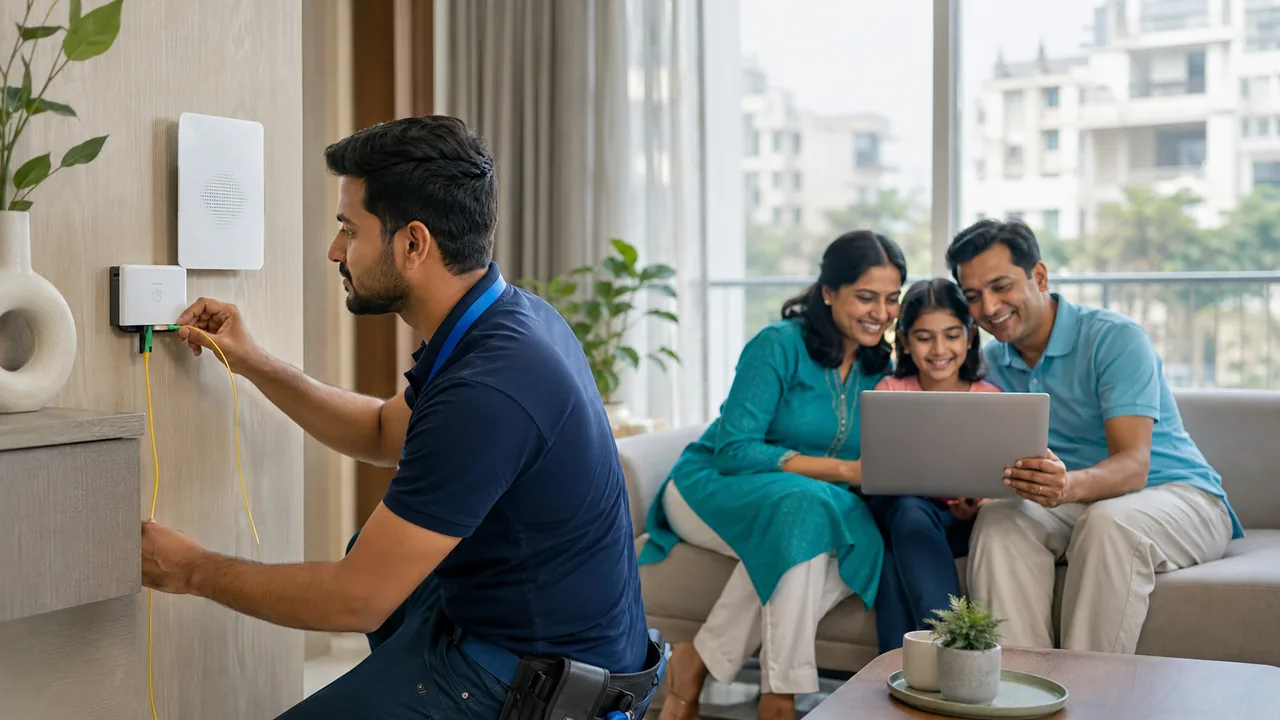
- Agree on router positioning: Identify the selected room where coverage matters most. A slightly longer internal cable can be worthwhile when it places the Wi-Fi gateway centrally.
- Test and secure the network: Once service is live, test close to the wireless router, set a strong Wi-Fi password, change the admin password and check the main rooms.
Before the technician leaves, check one wired or close-range result and at least two normal-use rooms. This is the best time to adjust placement while tools and cable are available.
How to measure actual broadband performance
The quickest isolation method for Chhattarpur Extension is wired versus near-router Wi-Fi versus far-room Wi-Fi. Each step removes a possible cause.
One result cannot describe Chhattarpur Extension reliably. Compare a normal period with the busy period and save screenshots that identify time, equipment and whether Ethernet or Wi-Fi was used.
A fair measurement at Chhattarpur Extension uses one device and one server with background syncing stopped. Compare wired performance or a close-range 5 GHz result before testing distant rooms.
Why fast fiber can still feel slow on Wi-Fi
At Chhattarpur Extension, separate fiber capacity from indoor Wi-Fi. Test 5 GHz in the main signal area, then repeat in the farthest used room; a large drop between them points to coverage.
In Chhattarpur Extension, the area includes multi-room homes where the Wi-Fi gateway is often installed near the entrance even though most online activity happens deeper inside. For a second floor or a distant room, an Ethernet-fed access point usually preserves more speed than a basic repeater. Mesh systems are convenient when wiring is difficult, but node placement must still be tested.
At Chhattarpur Extension, the lower-frequency band generally offers reach and the 5 GHz band offers faster short-range service. Separate names can simplify room-by-room checks.
When internet connection chhattarpur extension does not feel right
Use the following page-specific fault example: at Chhattarpur Extension, camera calls freeze while downloads appear acceptable. The purpose is not to assume that every customer will see this problem, but to show a disciplined way to isolate it without repeatedly resetting equipment or changing several settings at once.
- Record the symptoms before rebooting: Write down which devices fail and whether the Wi-Fi name disappears.
- Separate line from Wi-Fi: Use Ethernet or a close 5 GHz test to check the incoming capacity.
- Measure performance in the affected space: Repeat the normal activity in the exact room where it fails.
- Remove the latest network change for comparison: Remove a new repeater, VPN or manual DNS change temporarily.
- Share the test evidence with the service team: Share screenshots and router-light details with local support on 9971524677.
If the issue follows one device around the building, inspect that device. If every device fails only in one room, inspect coverage. If every device fails beside the Wi-Fi gateway, inspect the optical link, power and optical equipment.
Security, cable care and reliable daily operation
Power accessories at Chhattarpur Extension should be clearly marked. The wrong adapter may create instability, while a suitable UPS can maintain service during a short outage.
Use WPA2/WPA3 and two distinct passwords at Chhattarpur Extension: one for Wi-Fi and one for administration. For shared housing in Chhattarpur Extension, a guest network is useful for visitors and temporary tenants.
If Chhattarpur Extension works only after repeated reboots, collect evidence instead of treating rebooting as maintenance. Power and optical status can reveal the real cause.
Booking checklist for Internet Connection Chhattarpur Extension
A two-minute checklist can prevent confusion about cost, equipment and support later.
- In-home signal coverage needs across floors or distant rooms
- Router model, ownership or refundable security terms
- Exact recurring charge and selected speed
- Rules for shifting the service to another nearby property
- Local service contact and fault-ticket procedure
- Technical needs beyond ordinary home browsing and streaming
- Payment receipt and plan start date
Check fiber availability for Chhattarpur Extension
Send the exact Chhattarpur Extension address, floor and nearby landmark. Fiber Link Broadband will check feasibility and explain the suitable plan and Wi-Fi setup.
WhatsApp 9971524677FAQs about Internet Connection Chhattarpur Extension
Is internet connection chhattarpur extension available at every address in Chhattarpur Extension?
Fiber access for Chhattarpur Extension is confirmed at the individual premises level. WhatsApp the floor, landmark and pin to 9971524677 for verification.
Is local support available for Chhattarpur Extension?
Fiber Link Broadband provides local availability checks and support through contact by phone or WhatsApp on 9971524677. Response and installation timing depend on the precise property details and current field schedule.
Can one router cover a multi-floor home?
Sometimes, but concrete floors often weaken the signal. An Ethernet-fed access point or correctly placed mesh satellite is usually more reliable than relying on one router at the fiber entry point.
Does a faster plan improve Wi-Fi range?
No. Selected throughput increases available capacity, but range depends on router positioning, band, walls and interference. A mesh satellite or access point with Ethernet backhaul may be needed for distant rooms or another floor.
What is the difference between 5 GHz Wi-Fi and mobile 5G?
5 GHz is a Wi-Fi frequency used by a dual-band router. Mobile 5G is a cellular network. 5 GHz Wi-Fi is usually faster close to the wireless router, while 2.4 GHz generally travels farther.
Conclusion
Make the decision using your actual requirements, address and written terms. Verify indoor coverage and complete payable charges before booking.